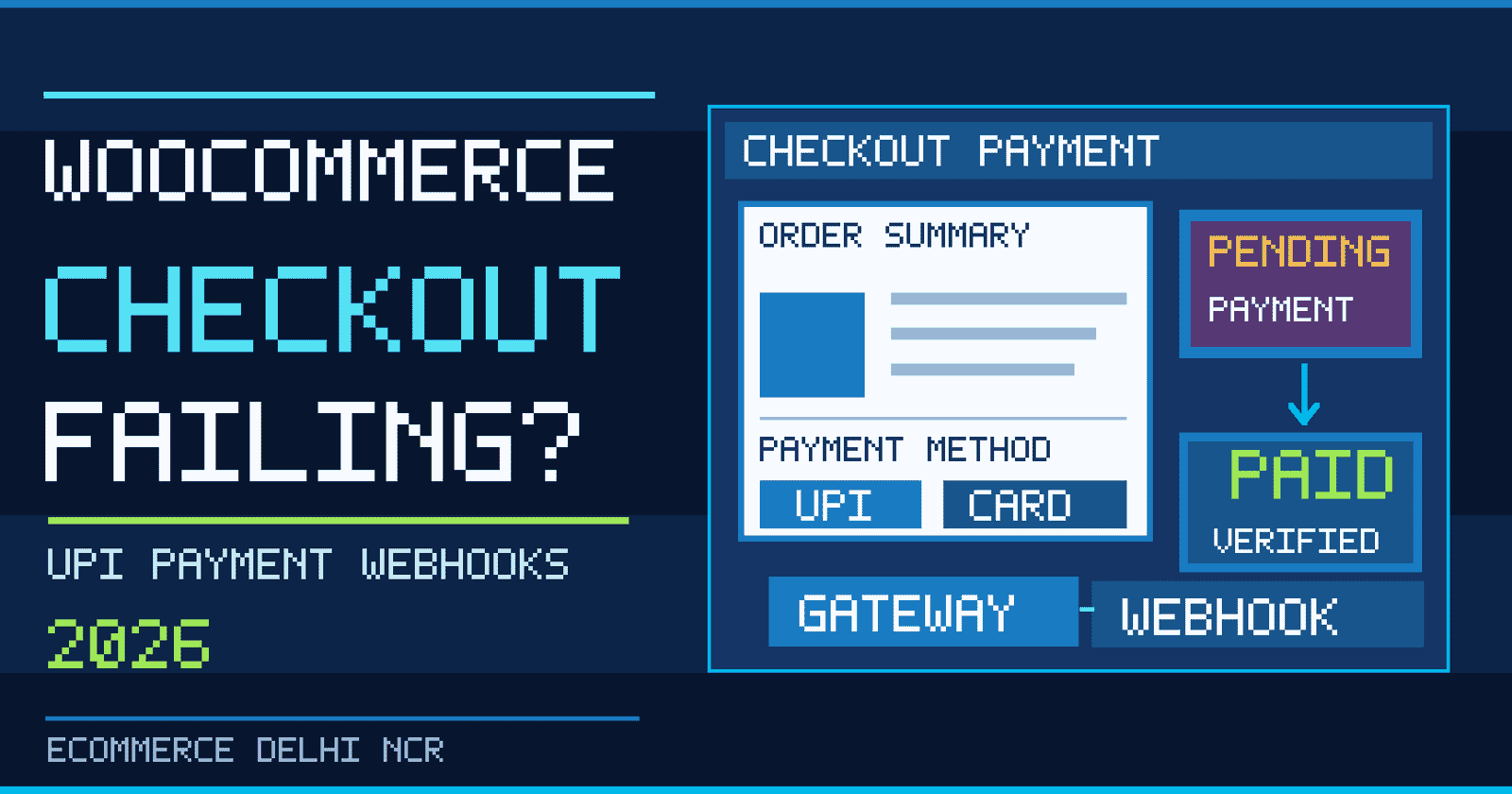
Quick answer: If WooCommerce checkout payments are failing, first identify whether the shopper’s payment was declined, the gateway was unable to complete a transaction, or the payment succeeded but WooCommerce never received confirmation. Check the order status and notes, compare the transaction in the payment provider’s dashboard, inspect gateway logs and webhook delivery, and reproduce the problem in a safe test environment. Do not ask customers to pay again until you have checked whether the first attempt charged them.
This practical WooCommerce checkout troubleshooting guide for 2026 focuses on UPI, card payments, missing payment methods, orders stuck in Pending payment, webhook failures and mobile checkout friction. It is intended for ecommerce teams in Delhi NCR and across India using WordPress and payment providers such as Razorpay, PayU or Cashfree. Gateway features and configuration screens vary, so use the documentation for the specific plugin installed on your store.
Why does WooCommerce checkout fail even when the website looks fine?
The checkout page is only one part of a payment journey. A customer selects a method, the store sends a request to the gateway, the payment provider processes the attempt, and the store receives a return response or a server-to-server notification. An error at any stage can make the customer believe the order failed. A successful payment can also appear as an unpaid WooCommerce order if the confirmation never reaches the store.
First separate payment failure from order-status synchronization failure. The fixes are different. A declined card is not solved by clearing WordPress caches. A successful UPI transaction stuck in Pending payment is not solved by asking the shopper to try another card. For broader store architecture, see our WooCommerce development service.
Diagnose the problem using this checkout symptom table
| What you see | Likely investigation | Safe first action |
|---|---|---|
| Payment declined | Issuer decline, authorization, limits or gateway response | Read order notes and gateway error code |
| UPI payment succeeded but order remains Pending | Missing or delayed webhook/callback | Reconcile transaction ID before any retry |
| UPI or card option missing | Gateway eligibility, checkout-block compatibility, country or currency rules | Check enabled methods and test with a supported address |
| Checkout spins indefinitely | JavaScript error, blocked API request, plugin conflict or slow server | Inspect browser console and network requests |
| Two orders for one shopper | Repeated submission, gateway retry or duplicate callbacks | Compare both orders with provider transaction records |
| Order total changed at checkout | Coupons, tax, dynamic pricing or currency recalculation | Refresh the checkout total and investigate the price change |
| Order is On hold | Manual payment method, delayed confirmation or authorization-only setup | Verify the payment method and capture status |
WooCommerce’s official order troubleshooting documentation recommends checking the order record, notes, provider dashboard and logs before changing settings.
Step 1: Check WooCommerce order status, notes and transaction ID
Open WooCommerce > Orders, select the affected order, and record the order number, time, payment method, status, gateway transaction ID and order notes. If the customer reports a debit, look up the same transaction in the payment gateway dashboard. Preserve the evidence without copying full card details or sensitive customer information into a shared troubleshooting document.
- Pending payment: The order exists but payment is not confirmed in WooCommerce. It does not prove that the customer was not charged.
- On hold: Often expected for bank transfer, delayed notification or an authorization that has not been captured.
- Processing: Payment is generally received for a physical-goods order awaiting fulfilment.
- Completed: Fulfilment is marked complete, commonly for digital or already delivered items.
- Failed: The payment attempt was unsuccessful or rejected according to the store’s recorded status.
Compare these statuses with the provider’s own records. If money was captured but the order is Pending, investigate the missing callback or webhook and reconcile it before fulfilment. The official WooCommerce order status reference explains the distinctions.
Step 2: Fix UPI payments that fail or remain pending
For Indian ecommerce stores, UPI failures can involve app handoff, customer cancellation, a gateway timeout, provider-side status delays or missing server-side notifications. A successful UPI authorization should not be inferred merely from a shopper returning to the thank-you page. Confirm it using the provider’s verified transaction record or an authenticated payment notification.
- Check that UPI is enabled and approved for the merchant account and applicable checkout mode.
- Verify the payment plugin is current and compatible with the installed WooCommerce version.
- Test the mobile UPI intent flow and any supported desktop QR or collect flow separately.
- Compare the merchant order reference with the provider payment ID and amount.
- Inspect the webhook or callback configuration for authentication, URL reachability and error responses.
- Confirm the store does not mark an order Paid solely from an untrusted browser query parameter.
- Use a staging or provider test environment to reproduce errors without generating real customer charges.
Gateway capabilities differ by merchant approval and device. Razorpay’s WooCommerce integration information describes its supported payment methods, including UPI. Do not assume every UPI flow is available on every account.
Step 3: Inspect payment webhooks and callback delivery
Webhooks are server-to-server notifications that can update WooCommerce when a payment’s status changes. If a buyer closes the browser after approving UPI, a properly configured webhook may still notify the store. If webhook delivery is broken, a successful payment may remain Pending until the issue is reconciled.
Review the webhook URL and signing secret in the provider dashboard, then inspect recent delivery attempts. Look for repeated non-2xx responses, authentication failures, TLS problems, blocked requests or application errors. Use provider-supported redelivery where available, and ensure webhook handlers are idempotent: repeated delivery of the same event must not create duplicate fulfilment or duplicate orders.
Do not disable signature verification to make an error disappear. Validate the provider’s signature, expected event type, transaction reference, amount and merchant account before updating order state. For a broader implementation discussion, see payment gateway integration services.
Step 4: Check why payment methods disappear at checkout
Sometimes the payment is not failing: the intended payment option is never shown. Verify the gateway is enabled in WooCommerce > Settings > Payments. Next, check supported currencies, billing countries, product restrictions, merchant activation and any conditional payment rules. Test with a real product, a supported shipping address and the same browser/device type that reported the problem.
Checkout Blocks versus classic checkout: A payment extension must support the checkout architecture used on the site. The block editor can flag incompatible payment integrations. Check WooCommerce Checkout block documentation before replacing templates or disabling plugins. Some providers also cache payment-method availability, so follow their plugin-specific refresh instructions.
Step 5: Troubleshoot JavaScript errors, plugins and caching
If the Pay button spins or a payment modal never opens, open browser developer tools and inspect the Console and Network tabs. Look for failed requests, 403 or 500 responses, blocked scripts, mixed-content warnings and JavaScript exceptions. A WordPress optimization plugin can accidentally defer or combine payment scripts that must run in a specific order.
- Exclude cart, checkout and order-received pages from inappropriate full-page caching.
- Check that session and cart cookies work consistently across domain and HTTPS redirects.
- Temporarily disable script optimization only in staging to isolate a conflict.
- Test with a default theme and only the essential WooCommerce/payment extensions on staging.
- Review WooCommerce > Status > Logs and the System Status report for plugin and template warnings.
Never run a plugin conflict test on a busy live store by indiscriminately disabling the payment gateway. Create a staging copy and use test credentials first. WooCommerce’s payment error guide recommends controlled testing and reviewing order notes and logs.
Step 6: Investigate checkout total mismatch and dynamic pricing
A shopper may see a message that the total changed between viewing checkout and placing an order. Check whether a coupon expired, a scheduled sale started, shipping or tax was recalculated, or a currency switcher changed the amount. For stores running WooCommerce 11.1 or later with block-based checkout, WooCommerce documents an intentional safeguard that stops checkout if the payable total increases after the shopper reviewed it. That message should not automatically be treated as a gateway outage.
Ask the customer to refresh the total and review the amount. If the mismatch is frequent, reproduce it in staging with dynamic-pricing and currency plugins, then correct the source of the recalculation. Avoid bypassing price-consistency checks without understanding the security implications.
Step 7: Make mobile checkout easier without compromising payment safety
Many Delhi NCR ecommerce customers arrive on mobile. A technically successful payment flow can still lose orders if buttons are hidden, address fields are cumbersome or app handoff is confusing. Test common Android and iPhone browsers, network speeds, logged-in and guest checkout, coupon application, delivery pin codes and the back button after returning from a payment app.
Prioritize readable error messages, clearly labelled payment methods, visible totals, an accessible Pay button and a recovery path when the customer abandons payment. If the order is uncertain, display a neutral Checking payment status message rather than falsely declaring success or failure. Pair payment reliability with a fast storefront; our ecommerce development guide explains the broader store experience.
Step 8: Prevent duplicate charges and misleading purchase analytics
Customers sometimes tap Pay twice when a page is slow. A payment provider may also retry a webhook. Use idempotent server-side operations and a stable merchant order reference so that one intended purchase does not generate multiple fulfilment actions. If a customer claims they were charged twice, investigate both provider transactions and follow the gateway’s refund or dispute procedure.
Separately, marketing tags should fire only under a documented confirmed-purchase policy. A payment initiation is not the same as a completed purchase. Our Google Ads purchase conversion tracking checklist explains transaction IDs and duplicate measurement. This article is about payment reliability, not advertising attribution.
Seven-day WooCommerce checkout repair plan
| Day | Action | Evidence to save |
|---|---|---|
| 1 | Collect failed order samples and categorize symptoms | Order IDs, statuses, gateway references |
| 2 | Review gateway credentials, enabled methods and merchant settings | Configuration checklist without secrets |
| 3 | Audit webhook delivery and order-state reconciliation | Event IDs, response codes, timestamps |
| 4 | Reproduce mobile UPI, card and COD paths in staging | Test matrix and screen recordings |
| 5 | Isolate checkout block, plugin and caching conflicts | Before/after error logs |
| 6 | Fix verified root causes and retest edge cases | Passing tests and rollback plan |
| 7 | Monitor production and reconcile exceptions | Failed-payment rate and unresolved cases |
Measure the percentage of attempted checkouts that reach a confirmed paid order, segmented by device and payment method. Also track unresolved Pending orders, webhook errors and customer complaints. Do not present payment-provider success rates as your own store’s results unless you have measured them.
Frequently asked questions about WooCommerce checkout failures
Why is my WooCommerce order stuck in Pending payment?
WooCommerce has not recorded confirmed payment. The customer may have abandoned checkout, the provider may still be processing the transaction, or a webhook may have failed. Check the gateway dashboard before requesting a retry.
Why does UPI work on one phone but fail on another?
Different devices, browsers and UPI apps may support different handoff paths. Check the gateway’s supported flows and test mobile intent, QR and fallback options where available.
How do I fix a successful Razorpay payment that still shows Pending in WooCommerce?
Match the provider payment ID, merchant order ID and amount. Inspect webhook delivery and plugin logs, then reconcile the order using the provider’s supported process. Do not mark an order paid from an unverified screenshot alone.
Can a cache plugin break WooCommerce checkout?
Yes. Incorrect full-page caching or JavaScript optimization can interfere with cart sessions and payment scripts. Test checkout exclusions and script behavior in staging.
What if the payment option is missing from the Checkout block?
Check whether the payment extension supports block checkout, and confirm merchant activation, currency and customer-country rules. The editor may identify incompatible integrations.
Should I ask a customer to retry when checkout times out?
Only after checking whether the first attempt created a charge or authorization. Otherwise, the customer could be charged twice.
Does an On hold order mean payment failed?
No. It can be normal for offline payments, delayed settlement or authorization-only flows. Review the payment method and order notes.
Does fixing checkout automatically fix Google Ads conversion tracking?
No. Payment confirmation and advertising measurement are separate systems. Once payments work, test the purchase event, transaction ID, value and consent configuration independently.
Need help fixing WooCommerce payment errors in Delhi NCR?
Businesses in Delhi, Noida, Gurugram, Ghaziabad and Faridabad should troubleshoot failed checkout systematically instead of installing another payment plugin blindly. Keshav Enterprises supports WooCommerce builds, gateway integration, performance improvements and ecommerce maintenance. Share your checkout issue with our team, including the affected gateway, symptom and approximate time of the failure, but never send API secrets or card data through a contact form.
Editorial note (28 October 2026): Payment-gateway features and WooCommerce versions change. Verify the documentation for the exact versions installed on your site before applying a production fix.